 Phantom Player
Help
User Manual
Index:
Playlists Window

This menu allows users to create and visualize all the playlists, and to open a playlist, you can simply do a left-click on it.
How to create a playlist
- Click Main menu > New Playlist or use the CtrlN shortcut.
- In the general tab, fill the playlist name.
- In the sources tab, use the add button to select a directory containing videos.
- In the bottom of the window click the add button to save the playlist.
Remarks:
- All paths (and playlist names) containing the pipe | character will be excluded.
- The paths shall not contain partially downloaded files that do not have the *.part extension. This is crucial because such files will disrupt the hashing system used to recognize files.
Keyboard shortcuts
- CtrlN Create a new playlist.
- CtrlO Open a video.
- CtrlF Filter playlists by name.
- CtrlM Hide or Display missing playlists.
- CtrlH Hide or Display hidden playlists.
Playlist Window
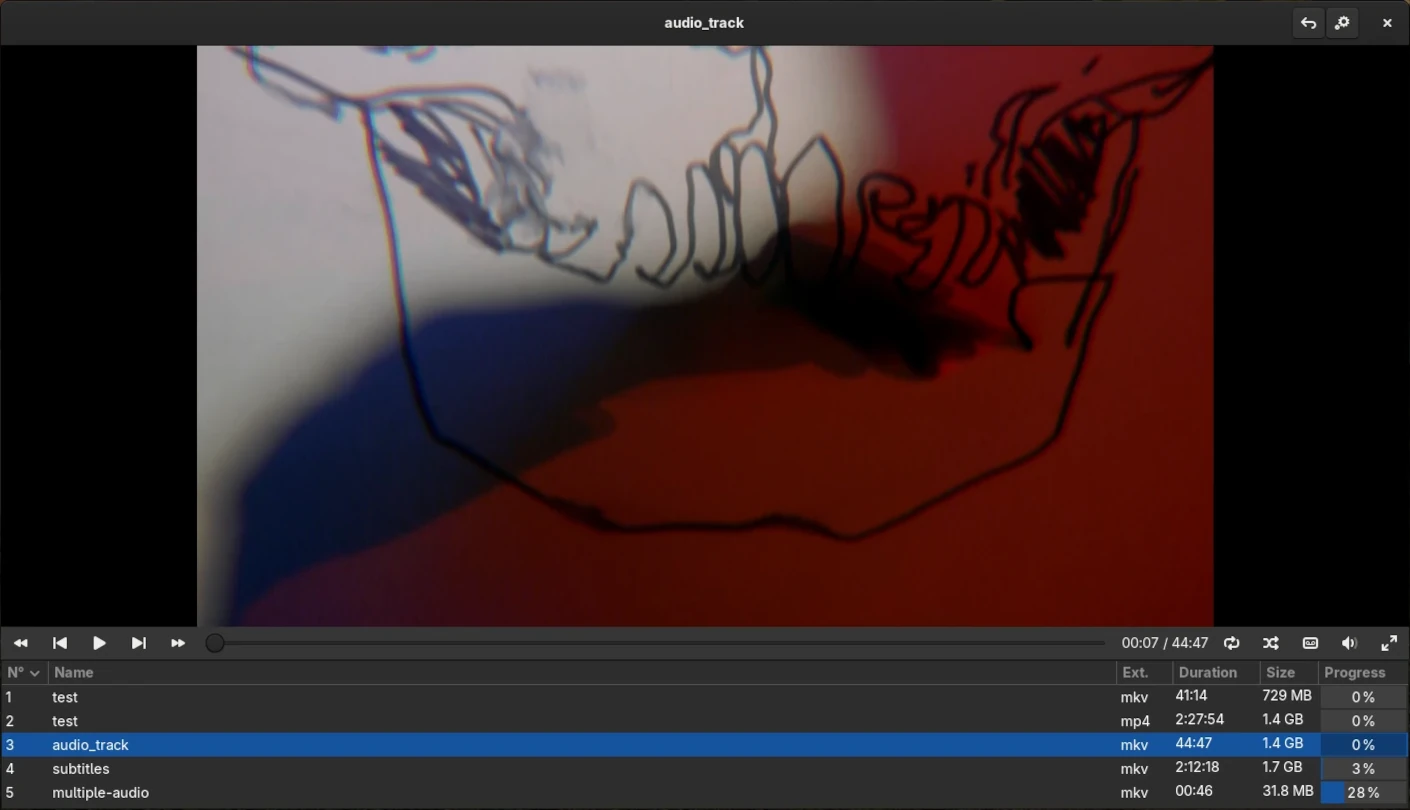
The videos menu allows to visualize all the content of a playlist, and to manage its settings.
Actions
- Play a video with a double left-click.
- Open a video's menu with a right-click.
- Modify the columns to display by doing a right-click in the videos-list header.
- Resize the player by grabbing the separator with and moving it up or down.
Remark: It is not possible to remove videos while the playlist is loading, or it is discovering new videos.
Keyboard shortcuts
- Backspace Go back to the playlists' menu.
- CtrlS Open the settings menu.
- CtrlH Hide or Show ignored videos.
- CtrlR Rename the selected video.
- CtrlO Open the directory of the selected video.
- CtrlV Fill the selected video's progress (mark them as viewed).
- CtrlU Reset the selected video's progress (mark them as un-viewed).
- CtrlI Ignore the selected videos.
- CtrlJ Un-ignore the selected videos.
- CtrlD Delete the selected videos.
- CtrlL Move the selected videos one row down.
- CtrlT Move the selected videos one row up.
Video Player
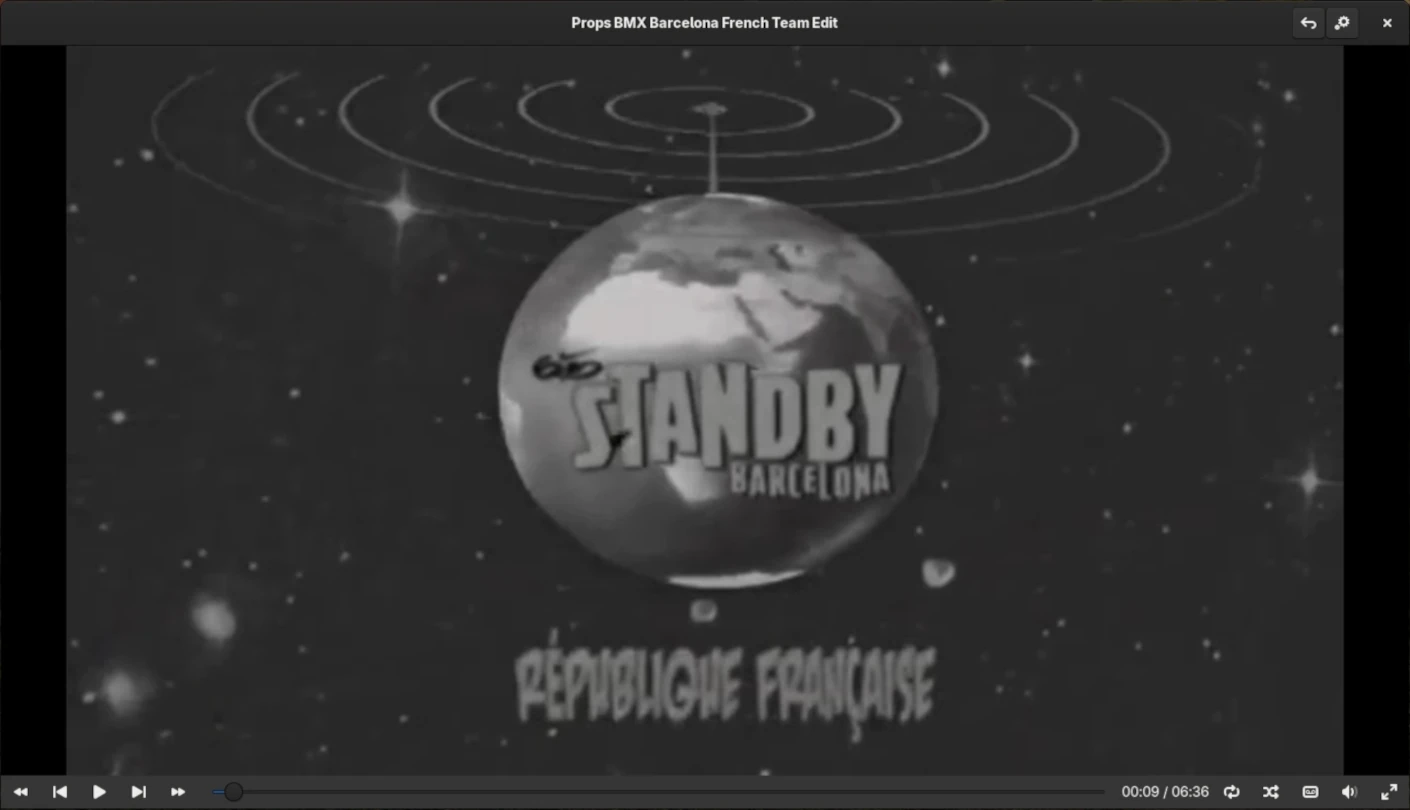
Actions
- Change the volume with the mouse wheel.
- Toggle Play/Pause with a left-click, but only in fullscreen.
Buttons
- Previous / Next: To navigate to the Previous/Next video without modifying the progress of the current video.
- Play or Pause: Play or Pause the current video.
- Start / End: Set the progress of the current video to the Start / End.
- Keep Playing: Automatically reproduce the Next non-player video.
- Random Mode: Randomly assign the next non-player video.
- Audio & Subtitles: Change the Audio or Subtitles track.
- Audio Volume: Set the level of the current audio track.
- Full-screen: Enable or Disable full screen.
Keyboard shortcuts
- F11 to set fullscreen.
- Fullscreen only:
- Esc Quit fullscreen mode.
- Up/Down Increase or Decrease the volume.
- Spacebar or Enter Play or Pause the current video.
Remarks:
- If a video has a *.srt file with the same name and same location, it will be used as the default subtitle.
- The player controls only work if a video is loaded.
Command line
It is possible to start playing a video directly from the command line: phantom-player --open-file <file_path>
Extra
The location of the configuration files is the following:
-
GNU-Linux
- Configuration file: ~/.config/phantom-player.ini
- Playlist files & icons: ~/.local/share/phantom-player/
-
Windows
- Configuration file: C:\Users\%USERNAME%\AppData\Local\PhantomPlayer\phantom-player.ini
- Playlist files & icons: C:\Users\%USERNAME%\AppData\Local\PhantomPlayer\Playlists\